
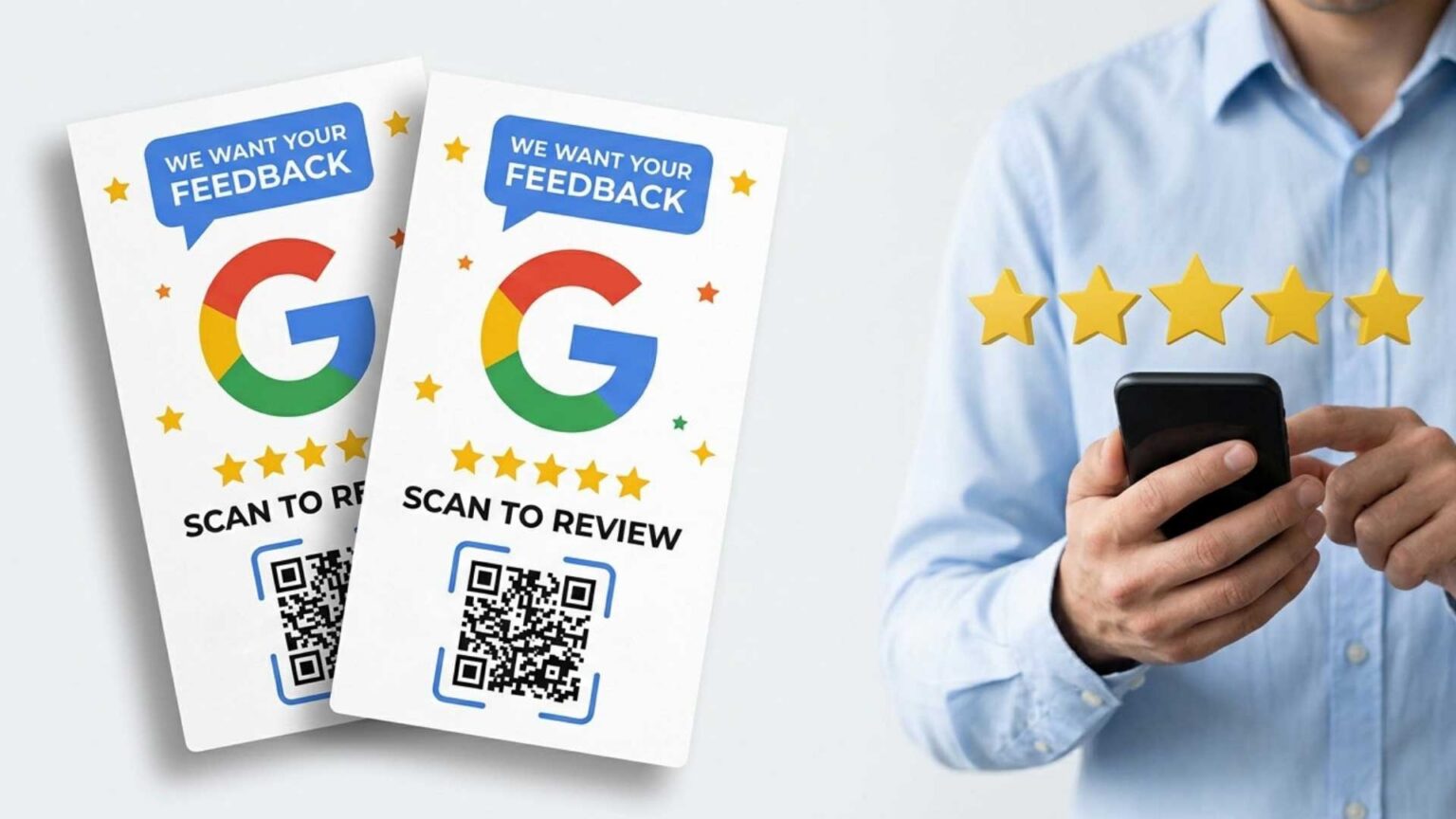
A happy customer does not always leave a review, even after a great experience. Many people want to share feedback but forget once they leave your business and return to their daily routine.
Google review cards help businesses make that process easier by putting one-tap access to the review page in the customer’s hand. These physical cards use QR codes, NFC technology, or both to open your Google review page with a scan or tap. The result is a faster path between a positive experience and a published review.
What Are Google Review Cards and How Do They Work?
A Google review card is a physical card that opens your Google review page with a single scan or tap. It usually includes a QR code, an NFC chip, or both.
The card removes unnecessary steps between a satisfied customer and your review page. Instead of searching for your business online, finding the correct listing, and navigating through multiple pages, customers reach the review form immediately.
The Three Types of Google Review Cards
Google review cards typically come in three formats:
- QR code cards: Customers scan the code using their smartphone camera to open your review page. This option works with most modern devices and does not require additional setup.
- NFC cards: Customers tap their phone against the card to open the review page. This creates a faster experience, but the device must support NFC technology.
- Hybrid cards: These cards combine QR code and NFC features. They provide customers with two ways to access the review page, making them a flexible option for different devices.
How Google Review Cards Deliver the Review Link
Both QR codes and NFC chips store the same information: your Google review link.
A QR code uses a visual pattern that a smartphone camera reads. An NFC chip uses short-range wireless technology that allows compatible phones to receive stored information through a quick tap.
Customers do not need to download a separate review app. The card opens the review form through a browser or the Google Maps app if installed. That simplicity is what makes review cards worth the investment, and the returns show up in how your business appears to the customers you have not met yet.
Why Do Review Cards Matter for Local Businesses?
Every review your business collects becomes part of the public record customers use to judge you. Review cards give businesses a repeatable way to build that record instead of waiting to see what arrives on its own.
How Review Cards Improve Customer Feedback
Review cards can help businesses collect more useful feedback by making the review process easier and more convenient.
- They make reviews easier to leave: Customers are more likely to complete a review when they can access the correct review page immediately instead of searching for the business online.
- They encourage more detailed feedback: Specific details come more naturally when the experience is still fresh. Customers who review immediately tend to mention the products, staff, or outcomes that help future customers understand the quality of a business.
- They create more opportunities for feedback: Review cards give businesses another way to request feedback from customers who may not respond to email requests or other digital follow-ups.
How Review Cards Support Local Reputation
Better feedback only matters if it works for the business afterward, and this is where the volume collected through review cards earns its keep.
Consistent Google business reviews help businesses strengthen their online reputation and provide future customers with more information when comparing local options. A profile with recent, detailed feedback often gives potential customers more confidence when deciding where to spend their money.
Detailed Google customer reviews also provide more context about a business’s services, customer experience, and areas of expertise. Reviews that mention specific services, locations, or experiences can help search engines and AI tools better understand what a business offers.
How Do You Set Up Your Google Review Card?
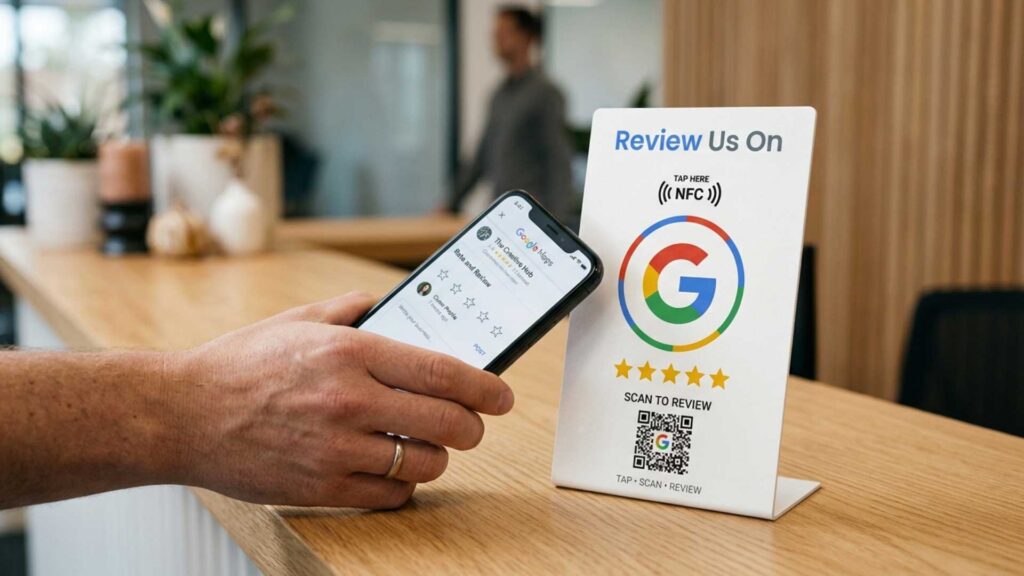
Setting up a Google review card requires a few simple steps. The process starts with creating a review link, choosing the right card option for your business, designing the card, and testing it before customers use it.
Step 1: Create the Link That Opens Your Review Form
Your review card needs a link that sends customers straight to your Google review form.
- Sign in to the Google Business Profile account that manages your location.
- Select the correct business profile and choose the option to request reviews.
- Copy the review link provided by Google.
For businesses with multiple locations, you may need additional steps to create the correct review link for each profile. Our guide on creating a Google review link explains the process, including the Place ID method for managing multiple locations.
Step 2: Choose a Card Based on Your Setup Needs
The right card format depends on your budget, customer environment, and how customers will interact with the card.
- QR code cards: The most affordable choice for larger quantities, since production requires printing alone.
- NFC cards: Best for settings where speed matters and most of your customers carry recent devices.
- Hybrid cards: The safest option when you cannot predict what devices customers will bring through the door.
Step 3: Design and Print the Card
A well-designed review card makes the next action clear for customers.
- Use a straightforward message such as “Tap to review” or “Scan to share your experience.”
- Keep the QR code large enough to scan easily, especially in areas with lower lighting.
- Choose durable materials that match your environment, such as countertop displays or wallet-sized cards.
- Add your business name so customers can identify the card if they use it later.
Step 4: Test the Card Before Using It
Always test your card before placing it in front of customers.
- Scan the QR code and tap the NFC chip using both iPhone and Android devices.
- Confirm that the link opens the correct Google review page, especially if your business manages multiple locations.
- Test the card in the location where customers will use it to make sure lighting and placement do not affect performance.
Once your cards pass testing, the next decision is how they reach customers during everyday interactions.
How Should You Use Google Review Cards With Customers?
A Google review card works best when businesses use it as part of a natural customer interaction. The goal is to make it easy for satisfied customers to share honest feedback without creating pressure or influencing their response.
Where Should You Place Review Cards?
Businesses should place review cards where customers already complete their interaction with the business.
- Point of sale areas: Place cards near checkout counters or billing desks where customers can access them before leaving.
- Service completion areas: Keep cards at the desk, workstation, or table where appointments, repairs, and meals close out.
- Packaging and product materials: Include cards inside packages, takeout bags, or service materials to reach customers after they leave.
How Should You Ask Customers for Reviews?
The way you request a review affects how customers respond. Businesses should keep the request simple and allow customers to decide whether they want to share feedback.
- Ask for feedback after a positive interaction or when a customer compliments your service.
- Use neutral wording such as “Share your experience” instead of asking customers to leave a specific rating.
- Keep the request brief and let the card provide the instructions.
- Avoid offering discounts, gifts, or contest entries in exchange for reviews.
What Review Practices Should You Avoid?
Businesses should follow Google’s review policies when requesting Google reviews for business profiles.
- Do not offer incentives: Giving rewards, discounts, or gifts in exchange for reviews can create biased feedback and may violate review platform guidelines.
- Do not pressure customers: Customers should have the freedom to decide if they want to leave feedback. Avoid asking customers to complete reviews on your device or under direct supervision.
- Do not filter reviews: Hand out cards to every customer rather than only the ones who appear satisfied. Selective distribution produces a review profile that misrepresents the full customer experience.
How Can You Track Google Review Card Performance Across Locations?
Tracking performance helps businesses understand which review card placements generate the most customer engagement. A structured tracking process allows businesses to measure results, identify improvements, and make better decisions about where to place cards.
How Do You Measure Review Card Results?
Businesses can track review card performance by monitoring customer actions from each placement.
- Use UTM parameters or branded short links to measure results from different locations. A counter card and a packaging insert should have separate tracking links.
- Compare scan activity with the number of published reviews. A high number of scans with few reviews may indicate issues with the review link, customer access, or the review process.
- Test different placements and messaging before removing a review card location that performs poorly.
How Should You Manage Review Cards Across Multiple Locations?
Businesses with multiple locations need a clear system to keep review requests organized.
- Create a unique review link and card for each location. A shared card can route feedback to one profile and limit visibility for other locations.
- Maintain a record of each location’s profile details, review link, short link, and card batch information to simplify updates and reprints.
- Manage overall review activity through Google Business Profile Manager while allowing each location to control its own customer interactions.
Talk With a Google Review Specialist Today
Google review cards give businesses a practical way to collect feedback from existing customers, but they are only one part of a complete review strategy. Businesses that want to grow their online reputation should combine customer feedback methods with consistent review management practices.
The right Google review company handles the work that in-person collection cannot cover on its own: building review volume on a steady schedule, keeping the pace consistent across locations, and removing reviews that violate Google’s policies. Buy Google Reviews runs Google review services built around those gaps.
Contact Buy Google Reviews to discuss your goals, or explore our Google 5-star review campaigns that focus on gradual review growth instead of sudden spikes. Businesses can also read our guide on getting more reviews to discover organic methods that work alongside any Google review posting service.
Frequently Asked Questions
Do Google review cards work without an internet connection?
The card itself does not need an internet connection because it only stores the review link. However, customers need mobile data or Wi-Fi to open the review page and submit feedback.
How much do Google review cards cost to produce?
The cost depends on the card type, materials, and order quantity. QR code cards usually cost less because they only require printed designs, while NFC cards typically cost more because they include embedded technology.
Can a customer leave a review without a Google account?
No. Customers must sign in to a Google account before they can submit a review. This requirement helps Google verify reviews and reduce spam or fake feedback.
Do NFC review cards work on all iPhones?
NFC review cards work with iPhone 7 and later models. Earlier iPhones do not support the background NFC reading these cards rely on, so customers using those devices should scan a QR code instead.
Can you reprogram an NFC card after printing it?
Yes, if the NFC chip remains unlocked. Businesses can update the stored review link using an NFC-writing app, which makes it easier to reuse cards if the review URL changes.