

A customer who has to search for your business, find your listing, and locate the review section may abandon the process before leaving feedback. Each additional step costs you reviews you already earned.
A direct review link gives customers a simpler way to share their experiences with your business. Understanding what the link is and how it works comes first, since every request you send afterward depends on it.
What Is a Google Review Link?
A Google review link is a direct URL that sends customers to the review form on your Google Business Profile.
How a Google Review Link Works
Customers who open the link land on the star rating options and the comment field without passing through search results.
Each Google Business Profile generates its own review link. Businesses with multiple locations should use the link connected to the correct profile to keep Google business reviews attached to the right listing.
Why Do Google Reviews Matter for Local SEO and Reputation?
Google reviews influence how customers evaluate a business and can affect how a listing performs in local search results. Reviews provide potential customers with firsthand feedback that helps them compare businesses before making a decision.
- Review volume, rating, and recency can influence local search visibility.
- Recent feedback shows that customers continue to interact with your business.
- Positive reviews help strengthen trust with potential customers researching your services.
For Google reviews for business, quality and visibility matter because customers often use feedback as part of their buying decision. A strong review presence helps businesses build credibility and maintain a more competitive online profile.
How Do You Create Your Google Review Link?
You can create your Google review link in three ways, depending on your account access and the number of locations you manage. The Google Business Profile dashboard provides the easiest option for most businesses, while search methods and Place ID creation offer alternatives for specific situations.
Method 1: Use the Google Business Profile Dashboard (Recommended)
- Sign in to your Google Business Profile account using the account that manages your listing.
- Select the correct business profile if you manage multiple locations.
- Choose “Get more reviews” or “Ask for reviews” from the Home or Reviews section.
- Copy the review URL Google provides.
This method works best for most business owners because it produces a working link without requiring additional tools or technical steps.
Method 2: Create a Link Through Google Search or Maps (Alternative)
- Search for your exact business name on Google or Google Maps while signed in.
- Open your profile and select the “Google reviews” section or choose “Ask for reviews.”
- Copy the review link once the review window opens.
This option works well when you can access your profile but cannot find the review link option inside the dashboard. Some recently claimed, or newly verified listings may have limited dashboard options.
Method 3: Build a Link Using Your Place ID (Advanced)
- Use Google’s Place ID Finder to find your business’s unique Place ID.
- Add your Place ID to this format: https://search.google.com/local/writereview?placeid=YOUR_PLACE_ID
- Open the link in an incognito window to confirm it directs customers to the correct review form.
This method works best for businesses managing multiple locations. You can organize Place IDs in a spreadsheet and create review links in bulk without opening each profile individually. Because bulk-built links skip the dashboard entirely, verifying each one before distribution matters even more.
How Do You Test Your Google Review Link Before Sharing It?
- Open the link in an incognito window and on a mobile device since many Google customer reviews come from mobile users.
- Confirm that the business name and profile details match the correct listing.
- Check that the link opens directly to the review form with the rating option available.
Testing your link before sharing helps prevent errors that stop customers from submitting reviews. A broken or misrouted link wastes every request you send until someone notices.
How Can You Share Your Google Review Link Effectively?
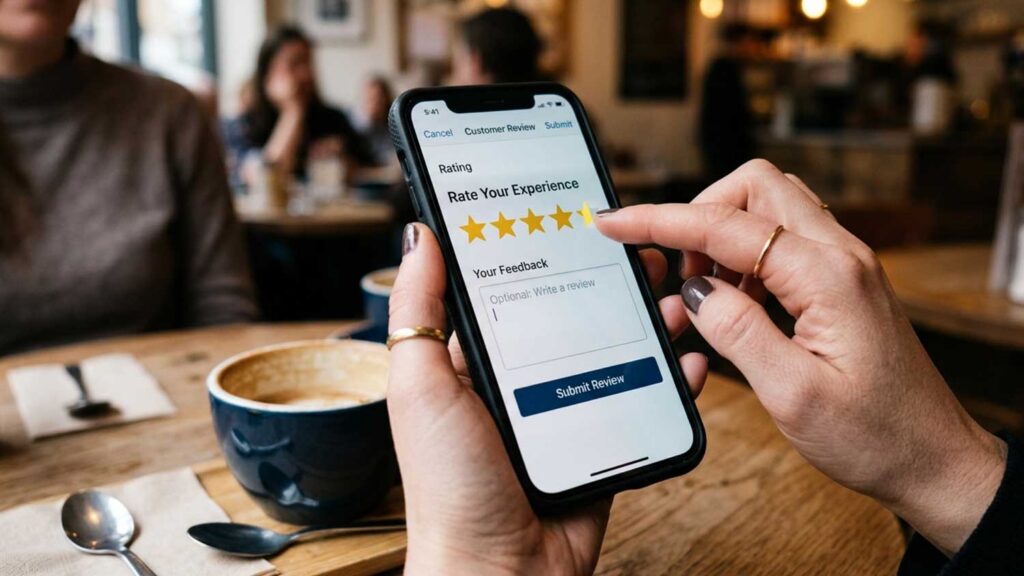
A working review link helps customers leave feedback, but the way you share it determines how often customers complete the process. Businesses should use clear messaging, appropriate timing, and the channels their customers already use.
Best Practices for Every Request
- Use a shorter URL: A branded short link looks more professional in messages and makes it easier to track engagement.
- Personalize each request: Send review requests from a real person, such as the business owner or service provider, instead of a generic email address.
- Request reviews at the right time: Reach out within 24 to 48 hours after completing a service, when customers can still remember the experience clearly.
- Send customers to the review form, not your profile: Always link to the direct review form rather than your general Google Business Profile page.
- Match the channel to your customers: Businesses collecting Google reviews for services often see strong results from SMS requests because customers can respond immediately after the interaction.
Businesses that want faster growth than organic requests can deliver often supplement these methods with structured review campaigns, which build volume on a controlled schedule instead of depending on customer follow-through.
How to Share Your Review Link Across Different Channels
- Email: Add the link to follow-up emails, invoices, and appointment confirmations. Use a clear button instead of placing a long URL in the message.
- SMS and messaging apps: Send a short, personal message with the review link. This works well for businesses that communicate with customers through mobile devices.
- QR codes: Add a QR code to receipts, packaging, signage, table displays, or company vehicles so customers can access the review form quickly.
- Website and social media: Include the link on thank-you pages, email signatures, and social media profiles to create more opportunities for customers to leave feedback.
What Mistakes Should You Avoid When Sharing Your Review Link?
- Sending review requests days or weeks after completing the service.
- Sending repeated reminders to the same customer, which can frustrate people and damage the relationship.
- Hiding the link at the bottom of a long email where customers may never find it.
- Sending customers to your general Google Business Profile instead of the direct review form.
A clear and timely request helps customers complete the process and gives your business a better opportunity to collect valuable feedback. How often you ask matters as much as how you ask, and Google sets specific limits on both.
What Google Review Policy Rules Do You Need to Follow?
Google sets guidelines that determine how businesses can request and manage Google reviews. Following these rules helps protect your profile and prevents reviews from being removed or filtered.
What Review Practices Does Google Prohibit?
- Offering incentives: Do not offer discounts, gifts, contest entries, or rewards in exchange for reviews.
- Review gating: Do not screen customers based on satisfaction and only request reviews from customers who are likely to leave positive feedback.
- Pressuring customers on-site: Do not pressure customers to leave reviews immediately or require them to use a company device.
- Leading customers toward positive ratings: Use neutral language such as “share your experience” instead of asking customers to leave a specific rating.
How Can You Reduce Review Policy Risks?
- Follow a consistent review request process instead of creating sudden activity patterns that may appear unnatural.
- Use clear and neutral messaging that allows customers to share honest feedback.
- Respond to reviews professionally, including both positive and negative feedback.
If a review violates Google’s policies rather than simply describing a negative experience, businesses may need to submit a formal removal request instead of relying on a public response. Our negative review removal service handles those cases, which follow a different process than responding to legitimate criticism.
How Do You Track and Manage Google Review Links?
Businesses need a structured system to measure which requests work, organize review links, and keep feedback connected to the correct profiles.
Click Tracking and Analytics
- Use UTM parameters or branded short links to identify which channels generate the most review activity.
- Compare link clicks with completed reviews. A high number of clicks with few submissions may indicate a technical issue or a difficult review process.
- Review performance data regularly to understand which channels bring the strongest results.
Multi-Location Review Link Management
- Create a unique review link and QR code for each location. Using the wrong link can send Google business reviews to the incorrect profile.
- Use Google Business Profile Manager to oversee multiple locations while allowing individual teams to manage customer outreach.
- Maintain a tracking sheet with each location’s business name, Place ID, review link, short link, and QR code file to prevent mistakes during updates.
A centralized review management system helps businesses maintain accurate profile information and organize their Google reviews across multiple locations.
Ready to Grow Your Reviews Faster? Talk to Buy Google Reviews
A successful review strategy requires more than creating a link. Businesses need a reliable process for requesting feedback, managing customer responses, and building a stronger online presence over time.
For businesses that need additional support, a Google review company can provide structured solutions for managing review growth at a predictable monthly cost. Buy Google Reviews offers Google review services designed to help businesses improve their review strategy while supporting long-term reputation goals.
Contact Buy Google Reviews to discuss your goals, or explore our Google 5-star review campaigns for a controlled approach to generating Google customer reviews. You can also learn more about organic review strategies that work alongside any Google review campaign.
Frequently Asked Questions
Can customers leave a Google review without a Google account?
No. Customers must sign in to a Google account before submitting a review. The account doesn’t need to use a Gmail address, since Google allows accounts created with any existing email, but the sign-in step is required.
For businesses in fields where customers hesitate to review under their real name, Google now allows reviewers to post under a custom display name rather than their account name, which is worth mentioning in your review request if privacy is a common objection.
How long does it take for a review to appear after submission?
Most reviews appear within a few minutes to a few hours. Some go through an additional screening pass before Google publishes them, which can add a day or two. If a customer says they left a review and it hasn’t appeared after 72 hours, it was likely filtered rather than delayed.
The most common reasons are posting from the same Wi-Fi network as the business, including links in the review text, or submitting from an account with little prior activity. These can’t be reversed. The customer would need to post again from their own device and connection, without links, to give the review its best chance of staying live.
Can a customer edit or delete a review after posting it?
Yes. Customers can update the written content, change their star rating, add or remove photos, or delete the review entirely through their Google account at any time, even after the business has responded. This matters for two reasons.
A customer who had a bad experience but saw it resolved may update their review without being asked, particularly if your response was professional and addressed their concern directly. On the other hand, a review you rely on can disappear if the customer closes their Google account, since all their contributions go with it.
Can service-area businesses without a storefront create a review link?
Yes. Verified service-area businesses can generate a review link even if they don’t display a physical address on their Google Business Profile. The process is the same: use the Google Business Profile dashboard to find the “Ask for reviews” option and copy the link provided. If your profile is new or recently verified and the option isn’t visible yet, the Place ID method described above works as an alternative and doesn’t require dashboard access.
Can I use the same Google review link for every location?
No. Each Google Business Profile generates its own review link tied to that specific listing. Sending customers to the wrong link routes their reviews to a different location’s profile, which skews both profiles. One collects reviews it didn’t earn, and the one that did earn them gets nothing.
If you manage multiple locations, the Place ID method is the most reliable way to generate and organize individual links in bulk, since each Place ID is unique to its listing and won’t change the way a shared link or dashboard shortcut might after a profile update.